• Windows 8 Task Manager

    As CPU’s have gotten more sophisticated with their logical cores, you may have noticed that if you have a quad-core CPU with eight logical cores after Hyper-Threading, the Performance tab of the Windows 7 Task Manager has problems displaying real-time graphs of per-core utilization..

  • Windows 8 Features

    Microsoft released the early version of Windows 8 on a prototype tablet last week. Those of you who would like to taste and experience the all new Windows 8, you can download the Developer Preview, which is currently in pre-beta version. The developer version shows off the current stage of the OS. It is available for free download, and comes in three different packages: (1) 64-bit version – Only the OS (2) 32-bit version – Only the OS (3) 64-bit version with developer tools ...

  • HP Confirms Windows 8 Tablets

    “We’re at the beginning stages of a new segment in personal computing,” Whitman said of tablets in the call. She also said that she doesn’t believe it’s too late for HP to succeed in the tablet market and that “the work we do with Microsoft is extraordinary compelling.” ...

Showing posts with label Advantages. Show all posts

Saturday, 12 November 2011

Download Windows 8 Transformation Pack

Microsoft has announced that Windows 7 is RTM now, and the final edition of Windows 7 will be released later this year. Windows 7 has become so much popular that people are thinking about next OS after Windows 7.


This Windows 8 transformation pack has been designed to use the features of Windows Vista and Windows 7. It has some cool features including Windows 8 wallpapers, redesigned taskbar, explorer, new boot screen and login screen.

Screenshots of Windows 8 Transformation Pack

Windows 8 Taskbar -

Windows 8

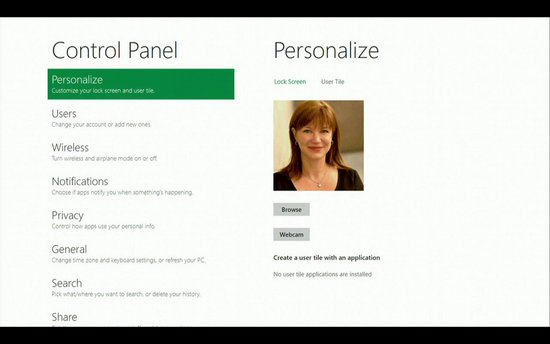
Windows 8 Logon Screen -

Windows 8 Logon Screen

Preview this Pack
System Requirements:

Windows Vista or Windows 7 OS that’s all !

Windows 8 transformation pack works with Windows Vista operating system and you can download it from following link.


Download Windows 8 Transformation Pack

Please tell us your Experiance in comments please and share it!

Read More

Friday, 11 November 2011

Windows 8 System Requirements

It is reported that Windows 8 is expected to have the same system requirements as Windows 7, and will run on existing PCs/laptops that run Windows 7. Here are the following minimum system requirements to run Windows 8:

Processor: 1GHz or faster 32-bit or 64-bit processor

RAM: 1GB (32-bit) or 2GB (64-bit)

HD Space: 16GB for 32-bit (or 20GB for 64-bit)

Read More

Microsoft has officially unveiled the Windows 8

Microsoft has officially unveiled their latest operating system to the public by releasing a Windows 8 preview video, which shows off some of the newest operating system features.

Windows 8 will run on all tablet PCs, notebooks, netbooks and of course more conventional desktop machines. But with Windows 8, Microsoft developers are aiming to create a seamless experience across all devices.

Mike Angiulo, corporate vice president of Windows Planning says:

“Our aim with ‘Windows 8′ is to make the user experience a natural extension of the device, from the time you turn on your PC through how you interact with the applications you know and love. This represents a fundamental shift in Windows design that we haven’t attempted since the days of Windows 95, presenting huge opportunities for our hardware partners to innovate with new PC designs.”

So basically there will be a single user interface for each version of Windows 8 that will look, function, and offer all the same features no matter what device is running it.
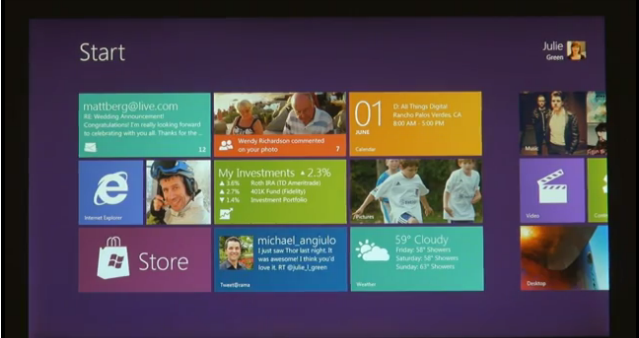
Windows 8 Preview

The Windows 8 preview was debuted at the D9 conference in California and was also further elaborated at Computex, 2011 in Taipei, Taiwan.

Microsoft unveiled the new operating system through several live demos and a fully narrated Windows 8 preview video. They showed off the main focus of the new operating system, a fully functional touch based interface.

The new interface finally provides an explanation for why Microsoft never offered Windows 7 in the form of a tablet experience. Windows 7 offered a great PC experience, but it was never optimized for touch-screen devices.

Windows 8 Preview of features and innovations

Windows 8 will now feature full support for tablet devices with a fully updated user interface and tile based menu system. Of course it will also support more traditional PC platforms including but not limited to desktops, notebooks, and netbook machines.

The Microsoft development team also unveiled additional information about Windows 8 to the public, but they did not provide an exhaustive example of the new operating system. While we don’t exactly know every detail about Windows 8, here’s the breakdown of what we do know:
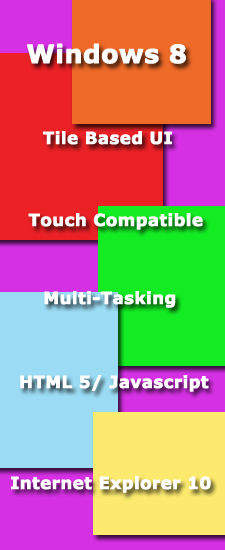
Windows 8 Features-Windows 8 will run on tablets, notebooks, netbooks, desktops, and probably mobile devices.

-Windows 8 will provide a streamlined touch interface for tablets and a traditional control scheme for a mouse and keyboard.

-The new user interface will be completely touch optimized for use with touchscreen devices that support gesture and multi-touch features.

-Windows 8 will ship with Internet Explorer 10 as the default browser.

-Windows 8 will use tiled menus similar to the Windows Phone 7 interface, but they will be more advanced and accessible.

-Windows 8 will run older software that is compatible with all previous versions of Windows (you can breathe a sigh of relief).

-Windows 8 will offer multi-tasking opportunities just as previous versions have in the past.

-Windows 8 will scale to the operating device’s proper screen resolution; which means it will scale automatically to tablets, netbooks and higher end desktops.

-Applications will be launched from a tile based start menu instead of the traditional icon list based menu.

-Web based applications and programs will use HTML5 and Javascript for better overall performance.

It is also very important to note that “Windows 8” is currently just a codename for the new operating system, which means the name can be changed at any time. Remember that Windows Vista was previously codenamed the “Mojave Experiment“, while Windows 7 on the other hand remained “Windows 7” during the entire development period. The operating system’s development name doesn’t necessarily reflect the official product release name.

Windows 8 Preview Video

Don’t just take our word for it, check out all the awesome new innovations and features of Windows 8, in the “Building Windows 8 Preview“.

watch Windows 8 Preview Video here:

Read More

The Windows 8 Task Manager

The new Windows 8 Task Manager this will provide new features if you have more than 1 CPU.

Problem With the Windows 7 Task Manager

As CPU’s have gotten more sophisticated with their logical cores, you may have noticed that if you have a quad-core CPU with eight logical cores after Hyper-Threading, the Performance tab of the Windows 7 Task Manager has problems displaying real-time graphs of per-core utilization. To make the CPU performance display, it squeezes in eight, time-on-the-x-axis charts into a small horizontal window: it doesn’t work very well. Now step forward to today’s more sophisticated CPU’s. How well will their information be displayed two CPUs and 16 logical cores, or four CPUs and 32 cores as Microsoft details in its latest Building Windows 8 blog post, 160 logical cores? Something has to change.

Number0 400x220 The Windows 8 Task Manager

The Metro-Style Screen

Windows 8 will revolve almost entirely around the new Metro-style Start screen; but that does not apply to the new Task Manager. The Metro interface isn’t designed for apps with mega-data density, but that is what the Task Manager works with. Since Windows 95, the Task Manager has grown into a general system for debugging. Both consumers and power users alike use it this way. The problem is that as the OS has become more intense the data density of the Task Manager has also increased.

Number11 400x303 The Windows 8 Task Manager

Differences

The main feature is that each core will now be represented as a block with its current utilization displayed as a percentage. There is no graph, no horizontal space constraints, just a heatmap-like grid (image above). You can compare cores for debugging purposes. So this increases the at-a-glance functionality of the Performance tab. You can now hover over a core to see its logical ID, too. And this interface will scale up to 640 logical cores, the Windows 8′s maximum. The Task Manager also modified The “Set affinity” dialog to make it easier to assign processes to specific processor.

Read More

The First Windows8 Beta Release In January

Windows 8 users are in for a gift soon after the turn of the year. Microsoft has let it be known that it may even be sooner than that. Consider that the Build 8141 appears to have been compiled on October 21, 2011.  It also includes changes with Metro apps zooming, changeable metro background color, and Media Center is now included.  A while back many users expressed dissatisfaction that the Media Center not a part of the Developer Preview and were worried that Microsoft may have been cutting the application, which HTPC enthusiasts love.  Apparently the next edition of the app just hadn’t been ready in time, but would appear in a later build. At least that is Microsoft’s contention.

With Windows 8 Developer Preview now being widely used, reviewed, and dissected across the world, many users have begun to get anxious for the beta edition.  Previously, the consensus opinion was that Windows 8 Beta would be unveiled and become available during the upcoming CES in January 2012.  But apparently some reports indicate that a beta release may be coming sooner than that.

Number11 400x190 Coming the Windows8 Beta Release In January

Since Build 8141 occurred only a few days ago it seems unlikely that the beta will be hitting the Microsoft download channel too soon.  However, it does lend credence to an earlier than CES release.  Below are two screenshots posted below that show part of that Build.  At this time they are unverifiable, but they at least have the look of something legitimate.

Number21 Coming the Windows8 Beta Release In January

Given that Windows 7 has been so successful, and that Microsoft’s other ventures have been less than successful, at least on the market side, even though technologically they have met their requirements, Microsoft may not want to wait too long to forestall the next implementation of Windows. Apparently, they may have learned a lesson from Apple, if you have a product ready or near ready for market, push it out…this gives the consumer something to talk about, and not just whisper hope and expectations. Perhaps a Windows 8 beta release will be here before we know it.

Read More

HP Confirms Windows 8 Tablets

Well would you look at that, I only published a story less than 24 hours ago about HP entering the tablet market with Windows 8 and then they go and confirm it just after. Typical! In fairness it probably isn’t much of a surprise, more of a coincidence that HP announced this news now. My post dabbled more with the idea of HP bringing back the TouchPad from the dead, but in a conference call with HP CEO Meg Whitman and an LA Times Analyst, HP cemented their commitment to entering the tablet market with Windows 8. However they didn’t say if they were going to be re-using the TouchPad brand.

Of course it’s no surprise that the worlds largest PC manufacturer is keen on entering the tablet race. However what people were curious to see is if HP decided to stick with their failed Web OS that they acquired from Palm this year, or if they should cut their losses and resort back to Windows 8. Based on this news, it looks like HP have decided to drop the Web OS from their tablet division in favour of Windows 8 as they’ve recognised the huge potential that Windows 8 can bring them. This is a bit of a U-turn for HP. Originally they had said that they would be working with Microsoft and bring out phones running Windows Phone 7. Then they dropped that in favour of Web OS which hasn’t been very successful for them at all.

HP Touchpad with HP logo and Windows 8 mock logo 580x395 HP Confirms Windows 8 Tablets

HP’s CEO said that they were still trying to figure out what it is that they are going to do with Web OS.

This is what Whitman said,

“We’re at the beginning stages of a new segment in personal computing,” Whitman said of tablets in the call. She also said that she doesn’t believe it’s too late for HP to succeed in the tablet market and that “the work we do with Microsoft is extraordinary compelling.”

Whitman said in the call that HP’s Windows 8 tablets would launch sometime next year and that the company would be narrowing its focus to help the company succeed not just next year, but also in 2013, 2014 and the future.

“One of my observations is that HP tries to do a lot of things,” “And I am big believer in doing a small number of things really, really well — set them up, knock them down, set them up, knock them down.”

One rumour that’s been going around is that HP could be thinking of using the Web OS in a range of Ultrabooks. HP has remained surprisingly quiet when it comes to Ultrabooks. Most of the other major PC manufacturer’s like ASUS, Acer, Toshiba and Lenevo have all announced these ultra thin devices. Personally I hope to god that they don’t release Ultrabooks running the Web OS as I really don’t think it would be suitable for them at all.

Source:

LA Times

Read More

The New Search Features in Windows 8

Part 1

The Windows 8 Search feature and the Start Menu will be different from that of Windows 7 or Vista.

The Windows 8 Start search builds on top of search features available in Windows 7 and offers a unique viewfor each of the three system groups – Apps, Settings and Files. Separating the search results into views means we can tailor the experience for each data type. For example, the File search view provides you with filters and search suggestions while typing and this will allow you to complete your query quickly.

One thing that will change with Windows 8 is the apps. People will be acquiring and installing more of them than ever before. What this means is that using the Windows 7 Start menu search interface to search for a Control Panel item, you would always see an App or program results before the Control Panel results, displacing many Control Panel items from being the first match. So, this problem forced Windows 8 designers to look for a new approach.

Number1 400x225 The New Search in Windows 8 Part 1

Another problem that becomes noticeable occurs when you consider the increasing use of larger monitors or higher DPI screens where longer menus become even more difficult to use and navigate. With Windows 7, you can only show a limited number of results in the Start menu. It could only display an average of 3-4 results per group. The results only rarely did all of them for a group show up, and the organization of the results was unpredictable.

With Windows 8, on the other hand, the search institutes an app-first model approach. This lets each app developer understands their data and users best, and knows the best way to present the information to them. By using the same model for search, users will have a quick and consistent way to get directly to settings or file search results. Looked another way, this gives you precision and control over the type of results you are looking for. This means that Windows 8 tailors each view for the type of content you are searching for, and shows all the results, instead of limiting them due to screen real estate.

Part 2

The Windows 8 search feature is different from its predecessors because it uses a new platform that filters the search. The platform breaks down searches into Apps, settings, and files. To put some framework for this, here is a graph showing how in Windows 7 the categories of search were displayed.

Number1 400x239 The New Search Features in Windows 8 Part 2

The  New Search Features in Windows 8 will make this basic operation more user friendly.

Control Panel and Searching Settings

The settings search experience brings together all settings and Control Panel items across the system in one view. Windows 8 matches the settings search results not only to the name of the Control Panel applet or task, but also to the various keywords that may describe it. For example, shutdown has not been available as a search result. But now it can be.

Number2 400x225 The New Search Features in Windows 8 Part 2

Searching files

The number of files on PCs keeps increasing over time as users continue to acquire and create more documents, music, photos, and videos. In redesigning the file search experience, the goal was to make it fast so users could achieve their task of finding a file without having to skip over to Windows Explorer.

Number3 The New Search Features in Windows 8 Part 2

It will also provide search suggestions as you type in order to help you complete the search efficiently. It accomplishes this by using the indexer. This program provides search suggestions using the content and properties of the files it knows about. This indexer concept actually arose from extensive use on the Web; and now it is part of the Windows 8 search framework.

Plus there is an improvement as this feature can also deal with typos or spelling errors; suggesting auto-corrected search term as you type. Using the arrow keys to choose suggestions autocompletes the term in the box. This makes it easy to add more terms to the query and quickly narrow down the set of results to find the one you want.

Number4 400x250 The New Search Features in Windows 8 Part 2

There is also backward compatibility since you can also still search using AQS (Advanced Query Syntax) from Windows 7. AQS allows for greater precision and control when constructing the query to get targeted results. Here are some sample searches and their advanced query syntax:

Query
AQS Syntax

Find all files authored by Jeff or Diane
author: (Jeff OR Diane)

Find all photos with an F-stop of 2.8 where no flash was fired
f-stop:2.8 flashmode:no flash

Find all files where the file name contains a word starting with Metro and the file size is greater than 1MB
filename:$<Metro* size:>1mb

This approach to separating searches for apps, settings, and files into their own views will allow each of them to evolve and breathe separately. In this way, the results can display a unique format unlike the single list of results in previous versions, which required uniformity to work in the limited space.

Read More

New Costs for Windows 8 Firmware Devices

When a new technology appears, invariably the laws of supply and demand kick in a quick way. There is very little supply, but there will be a lot of demand. That translates to a high cost. So, with the new Windows 8 OS under development and with all of the talk about new technologies being implemented, what do you think will happen to costs. Right. We pay the costs.

So here is what is happening with Windows 8 production costs. The new verification system, OA 3.0 will add complications and costs to the devices produced by Original Device Manufacturers (ODM’s), this then in turn goes to the Original Equipment Manufacturers (OEM’s) who in turn pass the costs to the consuming public.

OA 3.0

At the heart of this development is the observation that the new BIOS will incorporate Onboard Administrator (OA) 3.0. What we are actually talking about here is UEFI firmware devices, which translates into fast startup mode. It acts as a hybrid between a standard cold boot and restoring your PC from a hibernated state. It is a feature that all Windows 8 certified systems must have.

number2 21 400x117 New Costs for Windows 8 Firmware Devices

How it works

In a traditional shutdown, the OS closes all open user sessions, then in the kernel session the OS closes services and devices to prepare for a complete shutdown.

In the new shutdown, something else happens. The user session still closes, but the kernel session goes into hibernation. However it saves the system state and memory contents to a file on disk called hiberfil.sys and it then reads that back in on resume and restoring contents back to memory.

Now, here is the clincher, because the same technique is used in boot mode. By reading the hiberfil.sys and reinitializing drivers, this make boot up time anywhere from 30-70% faster.

So while this may make the system start faster, some questions appear on the horizon. This boot method is not a cold boot, and there may be degradation, so eventually the restart will become a cold boot. Also, can’t Microsoft make the cold boot any faster, or is that as fast as it can occur?

OEM Activationnumber13 400x170 New Costs for Windows 8 Firmware Devices

While BIOS activation may look like a new feature in Windows 8, it actually appeared in XP, Vista and Windows 7. It contained a certificate of authority (COA), which made it a legitimate product. But Windows 8 will bypass this and go directly to the source, Microsoft, for legitimate activation.

So while the faster and legitimate activation process is underway, there will be new costs to make this process take place.

Additional Costs

Instead of shipping PCs with a COA, the UEFI firmware will have keys incorporated into the system, but this will increase production costs for ODMs because each machine will require individual attention to place the key into the UFI firmware (rather than just sticking on the COA). Another cost involves technicians who will also require more training to perform that operation. Finally, remember that Microsoft charges a per-install fee, so having to install a second key because of an error would increase costs, thus the absence of a certificate on the machine could also increase costs because of installation overlap that may occur.

Finally, Microsoft also well known for its spirited operations with partners may be looking at finding a way for others to work through the costs. Apparently, some brand vendor ODMs believe that Microsoft told them that notebook ODMs will pay for the additional costs, while at the same time they told notebook ODMs that brand vendors will pay for the additional costs. So where will the costs ultimately get addressed? Hmm, you and me is probably the safe bet.

Fast Startup Mode

Production Costs

Read More

Nokia May Offer Windows 8 Tablets

Nokia’s CEO Stephen Elop suggested earlier this week at the company’s Q3 financial call that the company is looking into offering Windows 8 tablets in the very near future. In a way this would make sense for the phone manufacturer who has recently ditched their Symbian OS in favour of Windows Phone 7.

Because of the close integration of Windows Phone 7 with Windows 8, it provides a real opportunity for the company to try and claw back some of the market share that it’s lost of late. Nokia spoke of the synergy that exists between Windows Phone and Windows. There will be huge market penetration of Windows 8 as time goes by and it will pan across multiple devices, PC’s, Laptops, Ultrabooks, Netbooks and Tablets.

Nokia Tablet Nokia May Offer Windows 8 Tablets

You could think of the relationship in terms of the one that Apple has with OS X and iOS. Both of these operating systems integrate seamlessly. Nokia are hoping that the relationship between Windows and Windows Phone will be similar to this.

Elop said that they’ve been experimenting with tablets in the past, and even if you disregard the relationship between Windows 8 and Windows Phone, the huge install base that Windows 8 will offer is another huge opportunity for them to bring tablets to the market.

For those of you who don’t remember, Nokia shifted to using the Windows Phone 7 platform earlier this year as they were rapidly losing market share with their Symbian OS to smartphones running Android, iOS and even Samsungs Bada OS. As a result the company has been forced to completely change their business plan and adopt Windows Phone 7. They are expected to release a batch of Windows Phone 7 series phones at Nokia World later on this month. However they are keeping pretty tight lipped on all the devices they plan on announcing.

Read More

Windows 8 “Isn’t Finished”, Microsoft Reminds us again!

It’s almost becoming a weekly reminder but Microsoft have once more come out to remind the world that the developer preview is an early build of Windows where a great many new features (if you remember that long list we were shown at the BUILD conference where they only showed us a handful of features) simply haven’t been finished yet.

Of these are many enhancements to the new Start screen, most of which seem to be coming about from user feedback and complaints from users.  A great many usability changes are on the way for Metro, though it will largely remain the same due to avoid annoying all the developers Microsoft was trying so hard to woo a month ago.

It’s both surprising and unsurprising the venom some people have displayed in their reactions to the Windows 8 Developer Preview, it is truly an operating system that’s splitting opinion.

start1 100x100 Windows 8 Isnt Finished, Microsoft Reminds us again!

several insiders at Microsoft who publicly wish that people would stop talking about the Developer Preview.  All of them though privately admitted to me that they’re frustrated with the way this release has been handled, and in some cases, that it was made public rather than just through developer channels.  This is entirely, they told me, because of the press and public reaction the product has garnered so far.

There’s still no word yet on when the beta will be ready though there could now be pressure on Microsoft to rush it out, in an attempt to silence the seemingly ever growing number of critics.  As someone with contacts in Microsoft, and as someone who knows some bits about what’s coming soon (sorry, can’t say) I really hope they don’t.  In recent years Microsoft have fallen into a good one, bad one cycle with each alternate edition of Windows doing really badly.  You only have to look at their track record to see Windows ME and Windows Vista doing badly while Windows 98, Windows XP and Windows 7 were hugely successful around them.

While Microsoft are repeatedly asking people to stop talking about Windows 8 until the beta, I’m really beginning to understand why, and have some sympathy with them for saying so.  The Windows 8 Developer Preview is clearly nothing more than a simple Windows shell with all the functionality stripped out of it.  That functionality is still to come and might change the game completely.  The danger for Microsoft is that if it takes too long, or people continue to criticise Windows 8 in the way that they are, that people simply won’t be interested in giving it a fair chance when it finally appears.

Read More

Microsoft Talks About The New Windows 8 Task Manager

In a recent post over on the building Windows 8 blog, Microsoft gave us a more in depth look at the new task manager that they’ve developed for Windows 8. It’s a much more streamlined, user friendly version of the traditional task manager which hasn’t really changed a whole lot since Windows XP.

Task manager is a very useful tool for anyone who uses Windows, amateur and technical users alike. The only problem with the current version of task manager is that it’s just a bit too technical for the average user. It’s full of tools and data which let you identify and kill processes and monitor your RAM and CPU usage, but not everyone really cares about that stuff. Now the new version of task manager has been designed so that it focuses on what people use most in the task manager, which is to kill those applications that hang and get labelled as “not responding”.

The default view of task manager is now a nice minimalist experience which deals with that one single task. There’s no more tabs to distract you, no graphs or weird processes clogging up your screen. It’s plain and simple as you can see below.

8255.Default view of Windows 8 Task Manager thumb 6BF446C7 Microsoft Talks About The New Windows 8 Task Manager

When you launch Task Manager for the first time in Windows 8, you see a very clean view of your running apps. We made the default view great at one thing: killing misbehaving apps. And we removed everything that did not directly support that core scenario

But what about all that extra data and tools that more technical users want? Well clicking on the More detailslink at the bottom will open up a window with more in-depth data, similar to the current task manager, but with a new interface and a few more features.

7178.Processes tab of Windows 8 Task Manager thumb 39244053 Microsoft Talks About The New Windows 8 Task Manager

Microsoft has set up a “heat map” which makes it easier to spot applications that are causing trouble and eating up too much memory and using up system resources. Microsoft has also added the ability to group items by applications, background processes and Windows processes to help you determine which ones should be safe to shut down and which ones should be left running.

Also, a long awaited feature is that Microsoft have added “friendly” names to those processes in the task manager so that you’ll actually know what they do. This means that even an average user could understand what processes are running and whether or not they should be killed. There’s also the option to look up more information about the various processes online.

The new task manager certainly does seem to be a big improvement, what do you think?

Let us know in the comments

Read More

Microsoft Answer Start Screen Criticisms

The blog goes on to explain how Windows 8 takes advantage of Human psychology where icons are concerned.

The grouping of tiles in the Start screen was designed with these principles in mind. We know that sizes of groups will naturally vary based on the kinds of items that you’re throwing together. Not only does this flexibility help with organization, but it also helps by creating a heterogeneous layout where shapes and sizes vary from group to group. This makes it easier to find a tile when you know it’s in a small group with an uneven edge on its right side or in a large group that looks like a full rectangle.

Start Screen Customisation

Microsoft say that better customisation options for the Start Screen are coming in the beta.

The personalization of the Start screen is one of the features that we want to make great, and we’re still iterating on it and to make it better. In the Windows Developer Preview, you can already try flexible group sizes, unpinning tiles, and resizing wide tiles to square tiles. And in the Beta, you’ll also be able to use other improvements based on this dialog, in addition to creating, naming, and rearranging groups.

Jumplists and the Start Screen

One of the most interesting aspects of the blog is how it addresses Jumplists.  They do this by quoting a tweet from a user of the Developer Preview.

@tN0 wrote:

“Implement Jump Lists to the Live Tiles at the Start screen. Swiping up on a tile or right click could bring up a Jump List.”

Having a way to quickly access content within an app is a great feature and we’re happy to see the enthusiasm and increasing usage for jump lists in Windows 7. We have developed something new for Metro style apps that builds on the jump list concept. We think it will be even more powerful for end-users and an even richer opportunity for app developers. But first, some background on jump list usage in Windows today.

Mouse Distance and Mouse Clicks

One very common complaint so far regards the Windows 8 Developer Preview is with the distance people have to move their mouse on large screens.  Microsoft had an interesting response to this.

We took a look at desktop monitors, and by controlling for constants a and b because we’re on the same device, and varying D and W based on the targets in the Start menu and Start screen, we calculated the speed of acquiring an app link. We then applied a heat map to show the results and see the following comparisons:

5270.Page14 1 66830D1A 580x326 Microsoft Answer Start Screen Criticisms

6355.Page14 2 0CE4F066 580x326 Microsoft Answer Start Screen Criticisms

If you count the number of items that show up as green (delineated with the white line,) it is considerably larger on the Start screen (about 17 square tiles) than on the Start menu (2 apps). So there are many more items that you can reach more quickly on the Start screen.

This is just a taster of the full blog post, it’s very detailed and interesting.  You can read the full article here.

Read More

Windows 8 Uses Less Memory Than the Windows 7

Those of you who saw Microsoft demonstrate Windows 8 at their Build conference last month will know that Windows 8 uses less RAM than Windows 7. Microsoft used a low powered netbook which had just 1GB of RAM. They booted Windows 7 SP1 and the Windows 8 Developer Preview and after they had both been at idle for a while it was found that Windows 8 was using a lot less CPU and Memory compared to Windows 7. ( 5% vs 1% and 404 MB vs 281 MB)

Windows 7 was applauded for reducing the amount of memory that Windows uses, especially compared to Windows Vista but now Microsoft have gone even further with Windows 8. One of their goals was to make sure that all machines that are capable of running Windows 7, will be able to run Windows 8 without a problem. Microsoft have managed to surpass these expectations by making Windows 8 even less resource intensive.

0172.Figure 2 Memory usage in Windows 8 thumb 3049A0FD Windows 8 Uses Less Memory Than Windows 7

So how do they do it? Well Microsoft went into great detail over on the Building Windows 8 blog but I’ll try and just give you some of the main points.

Windows 8 make use of a new feature known as memory combining. Basically Windows looks at system RAM use, then it finds duplicate code that could be running for a variety of reasons, it then removes these duplicates from the memory so that you only have one copy of the code running, thus freeing up memory.

The number of background process that Windows 8 uses has also been reduced by 13. This is quite a large amount and should make a big difference and increase performance.

Even the new Metro interface helps reduce memory usage, although it’s only really for tablets. When you’re using a tablet, Windows 8 won’t actually load up the desktop components for the OS because the chances are you’re not going to bother using the traditional desktop if you’re using a tablet. Of course if you do decide to switch to your desktop it will still load them up, but not running these components saves around 23MB or RAM in the developer preview edition of Windows 8.

There’s a whole host of little tricks that Microsoft are using to reduce memory usage in Windows 8 and while I’ve only touched on them, you can read into them in more detail here on their blog

Read More

Microsoft Talks About The Windows 8 Start Menu

Many Windows users have become slightly concerned about the sudden change of direction from Microsoft. Instead of centering the whole OS around the traditional Windows start menu which has been around for years and years, they are now moving towards the Metro UI. As most of you know, Windows 8 is geared heavily towards touch interaction more so than for a mouse. While Microsoft say that the experience is still just as good with a mouse, I beg to differ.

In one of Microsoft’s recent blog posts over on building Windows 8, Chaitanya Sareen goes into great detail all about the new start menu in Windows 8 and how the way people are using it is changing dramatically. The post is littered with all sorts of fancy graphs and statistics that Microsoft have gathered over the years, mainly from Windows 7. From all this data they say that people are using the start menu less and less now, and that the taskbar has taken over a good bit from it. Users rarely scroll through their list of programs anymore and just access them via the taskbar or desktop.

1323.menu table 6412CF41 Microsoft Talks About The Windows 8 Start Menu

Microsoft believe that the mouse will not be replaced completely by touch but it will see it’s role in our computers reduced. They compare it to a similar debate which was held in the 80′s where people questioned whether or not a mouse was actually necessary for a computer. Microsoft do make a fair point. Touchscreens have become mainstream on pretty much everything but PC’s these days and we need something to kick off the change from traditional mice to touchscreens. Microsoft believe that Windows 8 is the necessary catalyst for such change, as in order for the standard hardware to change, we need the software to go with it.

To post is actually quite interesting and contains loads of facts and figures as well as the origins of the start menu. Have a read through it and it might see you changing your mind on the new Windows 8 start menu and Metro UI. There was also a follow up post released just today about designing the start screen which you can read here

It’s also important to remember that Microsoft still aren’t finished tweaking around with the whole start menu set up and plan on showing us some additional changes in the beta of Windows 8.

What do you think about the new start screen and start menu in Windows 8?

Let us know in the comments

Read More

What is meant by Zero-Power Optical Disk Drive

With the focus lying heavily on optimization for low screen resolutions, touch devices and mobile devices in general, Microsoft had to find ways to optimize the operating system’s power consumption and saving features. During the introduction of the Windows 8 developer preview Microsoft did not really reveal that many information about battery life, power consumption and new power saving options that the company build into the operating system.

One of the new features that we have not seen mentioned explicitly yet on the Internet is called Zero-Power Optical Disk Drive. It refers to a feature of the SATA Revision 3.1 specification (or short SATA 6GB/s). The official feature description is as following:

Zero-Power Optical Disk Drive (ODD) – eliminates the power consumption of an idle SATA ODD, resulting in increased energy savings

Microsoft supports SATA ODD in Windows 8. This basically means that optical drives will not consume any power when they are idle. It has to be noted though that the feature is only available if the computer supports SATA 6GB/s. If it does not, Windows cannot make use of the feature to reduce the power consumption of the operating system.

We have not seen any data yet on how much power this new feature will save on average. It is however likely that Microsoft will eventually publish an article on the Building Windows 8 blog that details all the improvements the company made when it comes to making the operating system more power efficient.

It will also be interesting to see if the new technology has an impact on the responsiveness of the disk drive.

Windows users who want to disable the feature in the operating system can do so in the Registry. For that they need to open the run box with Windows-r, type in regedit and hit enter.

They then need to display the Registry key HKEY_LOCAL_MACHINE\SYSTEM\CurrentControlSet\Services\cdrom\parameters\ and locate the responsible parameter ZeroPowerODDenabled on the right side. Changing the value of the parameter to 0 disables Zero-Power Optical Disk Drive on the system. A restart is required afterwards.

Read More

Windows 8′s Built In Antivirus Still Has A Way To Move

When Microsoft finally unveiled the Windows 8 Developer Preview edition a couple of weeks ago one of the items included with it was a built in anti-virus solution. While Microsoft does have it’s own antivirus software – Microsoft Security Essentials – it is optional for the PC user. Many people like to use other antivirus companies like Symantec and AVG. So it was interesting to hear that Microsoft are looking to ship Windows 8 with built in antivirus features. However according to a security research firm, it’s not very good at the moment.

The inbuilt antivirus software failed to detect the EICAR test virus which is a well known test to people in the security world. It’s a harmless virus but it should trigger a response immediately with antivirus systems. EICAR stands for European Institute for Computer Antivirus Research and is a string of characters which causes pretty much all antivirus programs to respond.

However ironically it was Internet Explorer which has long been seen as the weak link in Windows that detected the threat this time. When the user tried to download the EICAR test file from eicar.org using IE 10 it informed him that it was a malicious download and wouldn’t allow him to save it to the computer.

Then he pasted the 68-byte string into notepad and that should have set alarm bells ringing but it didn’t. He also tried copying it from a memory stick to the documents folder and Windows 8 yet again had no problem with it.

Even when trying to run the EICAR file it doesn’t identify it as a virus. You do get a error message though because EICAR is a DOS program and cannot execute on Windows 8, but in theory you should still get a virus warning.

The new antivirus was also tested out with sample viruses that were 6 to 12 months old and apparently Windows 8 only managed to pick up 50 percent of them. However it did successfully pick up a good few fake anti-virus samples for Mac and Windows.

I guess it’s probably still to early to make a call on this one. Windows 8 is still in its developer preview stage so I’m sure there’s still a good bit of work to be done with this. I’m sure they’re all busy at Microsoft as we speak developing it further.

Source:

nakedsecurity

Read More

Windows 8 conclusively proves it doesn’t matter what OS you are using

For years now experts (and Microsoft) have said that one of the main reasons Windows has proven so popular is the familiarity people have with the OS (aside from other reasons such as flexibility, available software etc.) and we’ve happily accepted this as a reasonable explanation.  However, many IT Pros have also said that this is a poor and shallow excuse for foisting on users an interface that is fundamentally inappropriate for them.

The ‘traditional’ desktop of minimize, maximise and close buttons, the dragging of the outside of windows to resize them, the pull down menus were all designed for the computers of thirty years ago, when computers were used for exclusively business, academic and scientific purposes.  For the average user then most of this wasn’t appropriate.  The learning curve was too high, it was too fiddly for many users to use comfortably and for the majority of simple tasks people wanted to do; get online, check email, manage photos and communicate with people, it was simply far too much to faff around with.

When the iPad appeared people didn’t really think of it’s new iOS operating system as being one for general purpose computing, as it was designed from the ground up for tablets.  The same happened with Google’s Android OS which, while far more like a traditional ‘desktop’, was still not shipped with desktop computers.  When Google’s ChromeOS finally appeared it too conformed to the uniformity of the modern desktop as observed by every desktop operating system since the 1980′s.

desktopstart1 Windows 8 conclusively proves it doesnt matter what OS you use!

Now though Windows 8 is breaking the mould.  For the first time since the modern desktop OS was invented, Microsoft are innovating with something completely new, radical and unusual.  They are the first company taking a mobile OS and translating it onto the desktop.

Now you can debate for ages the pros and cons of making such a move but I’ve now had some time to get over the initial shock and surprise and I’m coming round to the idea that what Microsoft are doing is actually a very good idea.  However in doing this they could be heading down a road where they might find themselves in trouble and losing market share.

The reason for this is that, if Windows 8 proves genuinely successful; and by this I don’t just mean raw sales, I mean people enjoying actually using it, then it will prove conclusively that it no longer matters what operating system you use.  Now all operating systems perform the same tasks is broadly the same way.  What sets them apart is how they work with applications and how they integrate with other services.  In this we can see Microsoft building their cloud ecosystem tightly into the operating system.  This is a good move as Microsoft’s cloud-based products, which include SkyDrive and Office online are much more polished and integrated than anything the competition has yet been able to offer.

So we now find ourselves at a point where the operating system has truly become something that disappears into the background, a claim Microsoft rather prematurely made for Windows 7.  Each operating system now won’t stand on it’s merits for being product X from company Y anymore, but will instead be judged on how integrated it is with other services and how well  it offers app integration too.

Windows 8 leaps ahead of the competition here by providing APIs that permit programmers to hook their applications into all manner of services for sharing and socializing, a nice move.  In doing this there can be little doubt that Windows 8 will launch as the most progressive operating system available.

But where does this leave iOS, Android and other operating systems?  I believe now we may see a push for these operating systems to begin appearing on the desktop too.  After all, if Windows 8 can completely change the Windows paradigm and people can be happy with transitioning to a new interface and a new way of working, why can’t they just as easily move to Android on the desktop or perhaps even WebOS?

Where the operating system market has opened up in the last few years is nothing to where I believe the same market will be taken in the next few years to come.  We’re heading into exciting times where the OS is simply a facilitator for the things you use.  This is the way it really ought to be.

Read More

SkyDrive, Live Connect and other New Windows 8 Implementations

Windows 8 will bring many new features, ranging from a new GUI to ARM. It will also let users more easily bridge the gap between online and offline by directly tapping into Microsoft’s Windows Live service. This will be the beginning of a new user experience, not seen before.

Log In and Synchronization

When you start, Windows 8 asks you to log in with your Windows Live ID. If you provide the information, Windows Live can then automatically store your Windows profile, settings, and other key pieces of information in the cloud. This lets you synchronize those settings with any Windows 8 PC in which you are logged into. This will ensure that you retain the same preferences from one PC to another. Microsoft is also promising the same synchronization between PCs and mobile devices running Windows Phone 7.SkyDrive11 SkyDrive, Live Connect and other New Windows 8 Implementations

SkyDrive Integration

What else? Well, Windows 8 will also integrate more smoothly with SkyDrive, Microsoft’s online storage site. What computer features do you get with SkyDrive? You can save documents, photos, and other files that you create locally there and access them from any PC, maybe even sharing them with other people that you designate. Microsoft will reportedly still limit SkyDrive users to 25 gigabytes of space for most files but offer unlimited storage for photos or Office documents.

SkyDrive2 400x224 SkyDrive, Live Connect and other New Windows 8 Implementations

Live Connect

The SkyDrive implementation and the API’s for developers are part of a Live Connect umbrella by Microsoft. With Live Connect users will also have access to Hotmail, and different calendars. It will also be part of the Windows Phone 7 integration package. Users should be happy with these features

Developers

Another new feature is that developers will also be able to provide services using this operation. Microsoft even has an API for SkyDrive that lets them read and write files to SkyDrive. Furthermore, manufacturers can add SkyDrive to their devices.

.

LiveConnect

SkyDrive

WindowsSteamBlog

Read More

Windows 8 Metro Apps Will Only Be Available From Microsoft’s App Store

I’m sure all of you know about the new Metro UI in Windows 8 which is built up mainly from apps. Microsoft demonstrated just how easy it is to build these apps and all the new elements that they add to the Windows operating system. Microsoft also confirmed that the only way to legally get these Windows 8 Metro Apps will be from the Windows 8 App Store.

Is it just me or does this scenario sound familiar? It looks like Microsoft are following Apple here, by limiting where you can get apps for your PC. One of the main reasons people prefer Windows is because it’s so open, anyone can develop an app or program for it and install it. It doesn’t have to go through a long painful certification process which wastes time and money. I can download a program from anywhere on the web, and if a developer feels like charging me for it, I can buy it through them directly.

Now with the Windows 8 App Store, Microsoft will be taking a 30% cut from developers, exactly the same as Apple. I suppose there will be some good things as well though. For example since Microsoft will have to check every single app there’s less chance of having buggy or even dangerous apps. Each app will be examined and checked for any viruses or malware. Microsoft will also be giving you 5 licenses with each download so you can install the app on up to 5 computers in your house, which is good for home users, not so good for developers.

Windows 8 app store 580x312 Windows 8 Metro Apps Will Only Be Available From Microsofts App Store

Of course you can also argue that Microsoft deserve a cut, after all it does cost to test all the apps and to store them on the server. Also, while Microsoft did say all this at the Build conference, there’s still a long way to go with Windows 8 and they may change their minds on one or two things between now and the official release.

What do you think of the concept of this Windows 8 App Store? Do you think Microsoft are copying Apple too much?

Let us know in the comments

Read More

Windows 8 May Not Allow Dual Boot Operations

bios outdated uefi 400x300 Windows 8 May Not Allow Dual Boot Operations

How is that possible? Well, Windows 8 logo guidelines require that systems have Unified Extensible Firmware Interface (UEFI) secure boot enabled. When this is in place, it would block Linux, or any other operating system, from booting on it.

The Windows Logo Program addresses the current and future market needs of customers using the Windows platform. Vendors and OEM’s receiving the Windows logo signifies that there is compatibility and reliability of systems and devices to the Windows operating system. It purports to give customers confidence that the product satisfies the conditions of a well-rounded software or hardware product. In order to meet those conditions the software and hardware must meet UEFI specifications.

What is UEFI?

UIEF Windows 8 May Not Allow Dual Boot Operations

UEFI is part of recent specification releases. It installs one or more signing keys into the system firmware. Then once the system enables the keys, secure boot prevents executables or drivers from being loaded unless one of these keys signs them. But that is not all. Another set of keys, Pkek, permits communication to occur between an OS and the firmware. An OS with a Pkek that matches the installed binaries in the firmware may add additional keys to the whitelist. Alternatively, it may add keys to a blacklist. The end result is that binaries signed with a blacklisted key will not load. That is where Linux is currently standing.

But the real thing about UEFI is that it will allow faster boot up, taking no more than two seconds to boot up the PC.

UEFI firmware BIOSA 8 231056 13 400x268 Windows 8 May Not Allow Dual Boot Operations

Final Standing?

How does this bode for Linux and other hardware OEM’s? That is still up in the air. Windows 8 still has to jump many hurdles, not the least is that many companies have done significant upgrades to their software or hardware on Windows 7, and may not be willing to spend another amount of time and dollars to perform something that they do not actually need. With Windows 7 flying high, why should companies drop that OS and start the upgrade path all over again? Then again…two seconds. Hmm.

Source: Microsoft UEFI

Read More
Powered by Blogger.